Supporting effective municipal government through education, training, advocacy, and legal services since 1941.

TECH INSIGHTS: Tips on how to copy formulas and data to other cells
The information contained in this article is not intended as legal advice and may no longer be accurate due to changes in the law. Consult NHMA's legal services or your municipal attorney.
Copying data or a formula from one cell to another is a huge time saver, until it doesn’t work. In this article I will show you a few tips and tricks to hopefully reduce or eliminate the pain of it not working.
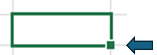 Autofill – Have a column or row where you want to have a series of dates, numbers, months, etc? Type in the first one or two of the series. Click on the cell or cells and look at the lower right corner of the outlined cell(s). There will be a small solid square. Click that square and drag to the left or down and the cells will automatically fill in.
 Maybe it wasn’t exactly what you were looking for. Microsoft guessed what you wanted but they guessed wrong? That’s okay. You can usually correct Microsoft’s assumption. When you dragged to where you wanted the data, a symbol appeared in the lower right corner of that section. Click that symbol and you have a series of options to let Microsoft know what you really wanted. Maybe you wanted the selection copied, or you wanted the first of every month (choose month) instead of every day of the month.
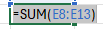 Copying the same exact formula to another field – What if you need the same exact formula in another cell? If you copy the cell and paste it into another, Microsoft tries to be helpful and updates the rows or columns when you paste. Instead of copying the cell, highlight the formula and copy it with Ctrl C. Then go to the cell you want it in and paste.
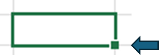 Copy the formula from the cell above or to the left – Are you in a cell that needs the formula from the cell right above it? Simply press Ctrl D and the cell will copy down changing the references down one row. To copy the formula from a cell to the left, press Ctrl R
Copying a formula across a row or down a column – Do you have a formula in a cell and need it copied down a column or across a row and have the formula update the reference cells automatically? You can copy the formula and paste it to the cell(s) you want, you can click the square discussed above and drag it across the columns or down the rows. Or, if you want to copy the formula down a column and have data in the cells to the left of the formula, you can simply double click the square and it will automatically copy the formula down the column as long as there is data on the left.
Locking a reference cell in a formula – So maybe you just used the option above to copy down a formula that determines the percentage of an amount out of the total. The problem is that when the formula was copied down, it did not stay locked on the total amount. The reference kept moving down every time the formula was copied down. That is a quick, easy fix. Putting a $ in a cell reference tells the formula to not change that section of the reference. If you want to make sure the cell B2 does not change when the formula is copied down and across, you place a $ in front of both the B and the 2 so you end up with $B$2. If you only want the column locked but not the row, you only have the dollar sign in front of the letter B to end up with $B2. If you want the column to be able to change but not the row, you place a dollar sign in front of the 2 to end up with B$2. If you are in or next to the cell reference in the formula, the F4 button rotates through those options.
Copying the formatting – Maybe you don’t want the data copied over, but you do want the formatting. On the Home tab of the ribbon, look in the Clipboard section – usually the section all the way or just one section over on the left. You should see a paintbrush. Click on the cell(s), row(s), column(s) or section(s) you want to copy the formatting from then click on the paintbrush. When over a cell, your icon now looks like a + and the paintbrush. Now click on the cell(s), row(s), column(s) or section(s) you want to paste the format to.
If you have shortcuts, formulas, tips or tricks you want to share or have me explain, please email NHMA. I will be happy to try to incorporate those requests in future articles.