Supporting effective municipal government through education, training, advocacy, and legal services since 1941.

TECH INSIGHTS: Excel’s Sumif and Sumifs formulas
The information contained in this article is not intended as legal advice and may no longer be accurate due to changes in the law. Consult NHMA's legal services or your municipal attorney.
Have you ever looked at a list of data and wished you could add up numbers that met certain conditions? For example, totals for bank accounts from a long list of perpetual care plots; or totaling the full- or part-time wages from a list of all employees. Excel has a formula that makes this easy.
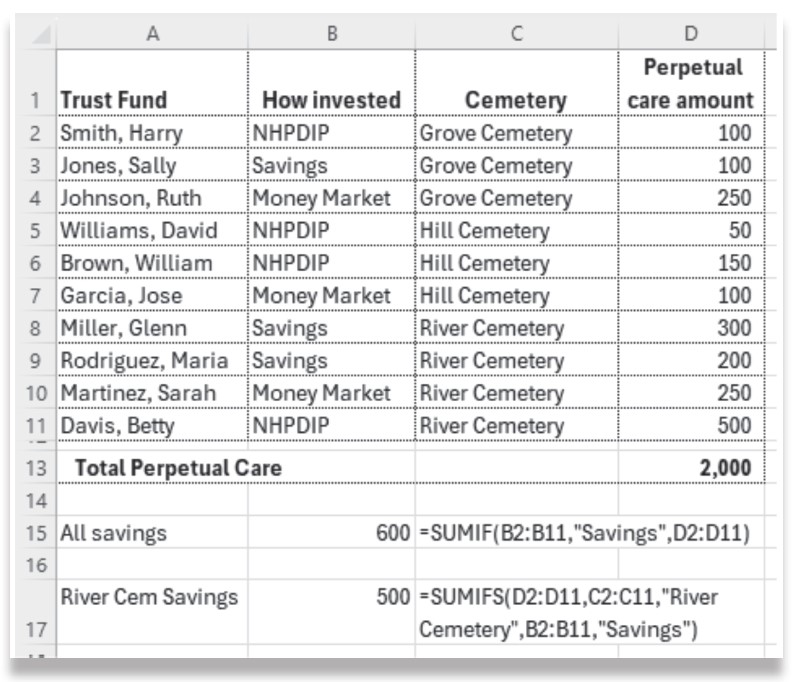
Sumif and Sumifs are formulas that will total the amounts in one column or row which meets the criteria of another column(s) or row(s). Let’s say your spreadsheet of Perpetual Care accounts has columns for the trust name, how it is invested, which cemetery that plot is located in, and the principal amount of the fund. Using Sumif, you can total the perpetual care amounts for the criteria of another column, such as how invested. The formula looks like =Sumif(range, criteria, sum_range). Using Sumifs, you can total the perpetual care amounts for multiple criteria, such as how it is invested for plots in a specific cemetery. The formula looks like =Sumifs(sum_range, criteria_range#, criteria1, criteria_range2, criteria2). In these formulas range or criteria_range# is the area you are searching for a particular criteria such as the column that says how invested or which cemetery. Criteria or criteria# refers to what you are looking for, such as Savings or River Cemetery. Sum_range is the area you have the amounts.
Here is an example: