Supporting effective municipal government through education, training, advocacy, and legal services since 1941.

Tech Insights: Utilizing NHMA’s Wage Data Part 4
The information contained in this article is not intended as legal advice and may no longer be accurate due to changes in the law. Consult NHMA's legal services or your municipal attorney.
In the last couple of issues, we have worked with NHMA’s wage data. In this issue we will review various alignment options that can be applied to the wage data or any other data you may be working with.
We will start with positioning data, especially text within a cell. On the Home tab in the Alignment box there are six boxes – three vertical and three horizontal alignment options.  The default position is the bottom left corner of a cell. If you wish to change that position, simply click on any of these boxes and your text will shift. This trick is especially useful if a cell is larger than normal.
In that same Alignment box, are two indent options.  The first, with an arrow pointing to the left, removes an indent while the second, with an arrow pointing to the right, adds an indent. This remove and add works the same regardless of whether your text is right or left align. This feature is great when wanting to shift text over, such as a totals line, to call it out.
Another useful alignment option  in this same area is the ability to angle the text in
 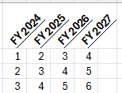 certain cells. If you have a series of data where the title is much larger than the data within the columns, try angling the titles which will allow you to reduce the column width. There are multiple options available with the drop-down arrow after the icon, including one which brings up the Format Cell box.
Merge & Center allows users to combine multiple cells into one larger cell without having to adjust row heights or column widths. Although this is a powerful tool, which I use regularly, please note there are some ramifications which may arise when using this feature. Some of these ramifications may include issues with sorting and filtering, disrupted formulas that cover ranges, inserting columns or rows, using filters, and many others.
Wrap text  is a great feature which will automatically adjust the height of a cell to contain all the text you have added without changing the column width. Combining this option with the Merge & Center allows notes or larger titles to be placed in a spreadsheet without leaving awkward blank areas.
As with many sections within a tab or ribbon in Excel, the 