Supporting effective municipal government through education, training, advocacy, and legal services since 1941.

TECH INSIGHTS: Filtering data on an Excel Spreadsheet
The information contained in this article is not intended as legal advice and may no longer be accurate due to changes in the law. Consult NHMA's legal services or your municipal attorney.
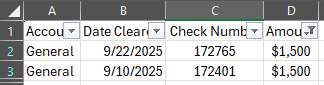
Isn’t it frustrating when you look at a spreadsheet trying to find specific information but there is so much data that it is impossible to see what you want? Maybe you have a list of employees in alphabetical order, but you only need to see the full-time recreational and sewer employees. How about a list of cleared checks from the bank statement and you cannot find the one the bank has the wrong check number on? I am happy to share that Excel has a feature that makes it easy to find what you are looking for.
Filters can hide or display rows containing certain items in columns. To do this, highlight an area or full columns of your spreadsheet you wish to search. On the Home tab in the Editing section click on Sort & Filter then Filter. Drop down arrows appear in the top row of the section you highlighted. Clicking on any of the drop-down arrows shows you, in alpha-numeric order, all the items below that dropdown arrow. In my example below I am going to choose the down arrow after FT/PT. The options given show that you can sort the section based on this column, sort or filter by color filled cells, or select only certain data within the cell. To see only the full-time employees, uncheck select all, check full-time, and click OK.
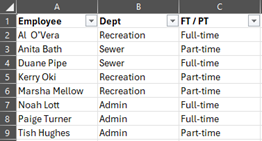
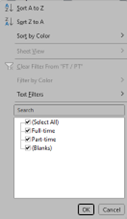
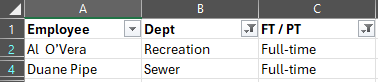
What is then displayed are only the full-time employees. Next you can choose the down arrow in Dept. Because you need to see the recreation and sewer employees, you simply need to uncheck the admin option. If you have blank rows you want to hide, you can uncheck blanks as well. What is remaining is now only your full-time water and sewer employees. Notice the drop-down arrow changes to a funnel shape on the columns you filtered data from. This is a visual indicator that these are columns with selections that are limiting your data. Also notice that your row numbers are not sequential. This is an indicator that there is data that is not being shown as it does not match your filters.
In the scenario of not finding a check by its number, you can set up filters and choose the filter for the amount column. Unselect all items, scroll down to the amount that matches your check, then click okay. The remaining data will be all the checks that are in that list that match the amount.