Supporting effective municipal government through education, training, advocacy, and legal services since 1941.

TECH INSIGHTS: Excel Multiple Tab Changes
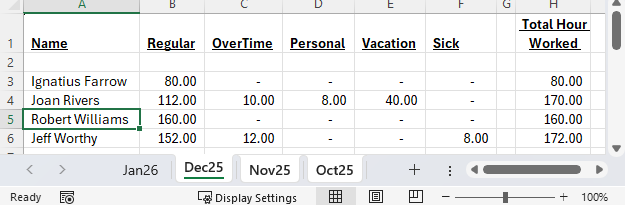
Sigh! It’s January and you just found a typo in the perfect spreadsheet you created last year. Each month last year you copied the prior month’s tab to the current month and just updated values. Now you have twelve tabs all with the same typo. You momentarily think, no one noticed, I can fix just this year and have it correct moving forward. John vs Joan, does it really make a difference? I’m sure John Rivers will not mind the typo, after all, shouldn’t he be proud to be mixed up with the pioneer of women’s comedy and the queen of fashion critics? The more you try to live with this thought process, the more your brain starts thinking about all the people who might see that typo still. The auditors are coming. It might be part of the annual town report. What if that naysayer in town gets hold of it – that person would never turn it into a joke on social media. Most importantly, you know it is wrong. You just can’t leave it be. Relax, with only a couple of extra clicks, you only need to make the fix once and all twelve tabs will be correct.
Open your spreadsheet and expand the tab section so you can see all the tabs you need to correct. This can be done by moving your mouse over the three dots between the tabs and the bottom scroll bar. Click and drag those dots to the right to make that section bigger. You may need to click on the right or left angle brackets to make the tabs show. Next, click on the first tab you need to fix, hold the shift key on the keyboard and click on the last tab you need to fix. All the tabs are now highlighted. If your tabs do not fit, you can still click on the first tab then use the angle brackets to find the last tab. Hold the shift and click on the last tab. All the ones in the middle will be selected. Alternatively, if you need to select multiple tabs that are not in a row, click on the first tab you need, hold the control (CTRL) key on your keyboard and click individually on the tabs you want to select.
Any change you make on one tab will be made in that same cell on all the highlighted tabs. Now navigate to Joan Rivers (A3 in my scenario) and change the name to John Rivers. That change will happen in cell A3 on every tab that is highlighted. Once the all the changes you want made to all tabs is complete, be sure to click on a tab or two on the bottom so multiple tabs are no longer selected. You do not want to change all tabs to be January’s values.
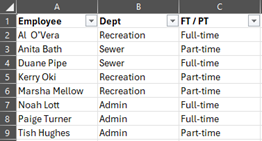
BEWARE, if you inserted rows or columns, it will change the exact same cell on every tab. So, if you inserted a row for Ignatius before John / Joan in March, you may override Ignatius’ name with John’s. Now you will have a John and a Joan in March, but no Ignatius.
Will become:
Tangent! (Anyone who has ever attended a training session I presented knows I love my tangents.) If copying tabs takes more than one click, I’ve got a shortcut for you. Hold the CTRL key on your keyboard, click and hold the tab you want to copy and drag your mouse to the right. A small box will appear with a plus (+) symbol in it. Let go of the mouse and keyboard and Presto, you have a copy of the tab. If you prefer the new tab to be on the left, simply drag the new tab to the left now that it has been created.